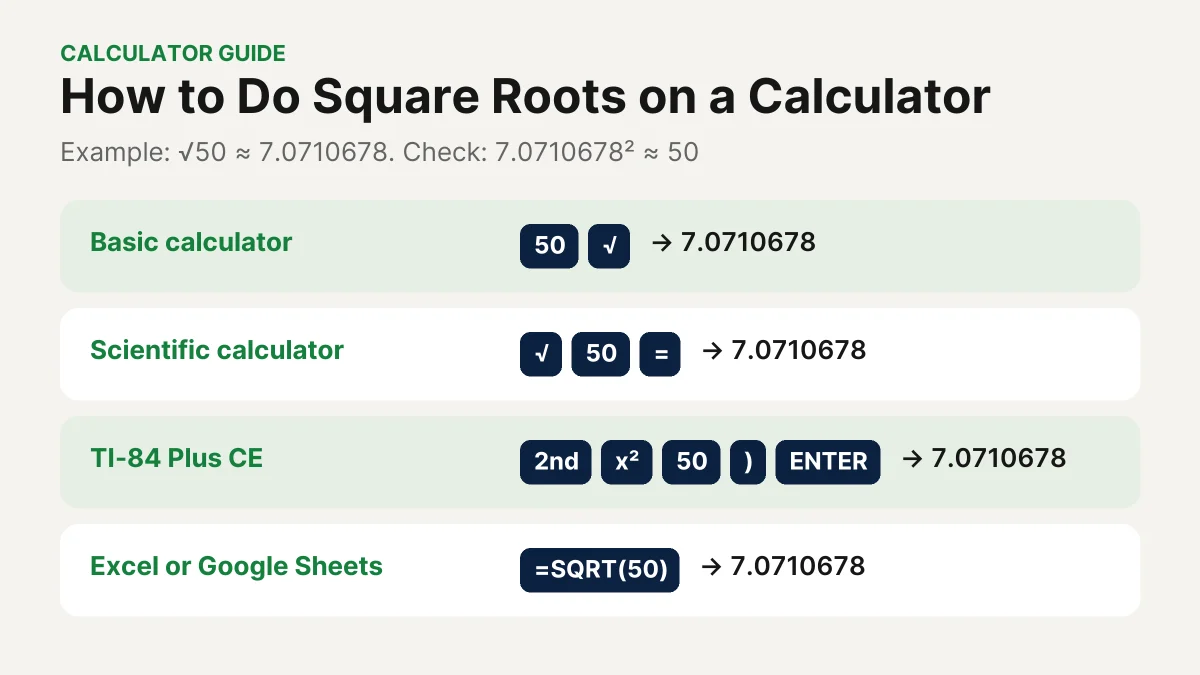
To do a square root on a calculator, press the √ key, type the number and press = (or ENTER). On a simple four-function calculator the order is reversed: type the number first, then press √. For example, √50 ≈ 7.0710678. On a TI-84 press 2nd x² to get √, and in Excel or Google Sheets type =SQRT(50).
In short: Scientific calculators: √, number, =. Basic calculators: number, then √. Check any answer by squaring it: 7.0710678² ≈ 50.
In this guide
Quick Answer: Which Keys to Press
| Calculator | Square root of 50 | Answer shown |
|---|---|---|
| Basic (four-function) | 5 0 √ | 7.0710678 |
| Scientific (natural display, e.g. Casio fx-991EX) | √ 5 0 = | 5√2, press S⇔D for 7.071067812 |
| CalcSolver scientific calculator | √ 5 0 ) = | 7.07106781187 |
| TI-84 Plus CE | 2nd x² 5 0 ) ENTER | 7.071067812 |
| iPhone or Android calculator | Open the scientific keys, type 50, tap √ | 7.0710678… |
| Excel or Google Sheets | =SQRT(50) | 7.071067812 |
How to Do a Square Root on a Basic Calculator
- Type the number, for example 5 0.
- Press √. The answer, 7.0710678, appears straight away.
- You do not need to press =.
A basic calculator works on the number already on the screen, so the √ key always comes after the number. This also means it cannot take the square root of a sum in one go; see roots of sums below.
How to Do a Square Root on a Scientific Calculator
Most modern scientific calculators show the expression as you type it, so you enter it in the order you would write it:
- Press √.
- Type the number, such as 5 0.
- Press =.
Casio fx-991EX and similar models give the exact answer when they can, so √50 shows as 5√2. Press S⇔D to switch it to the decimal 7.071067812. A perfect square such as √144 shows 12 directly.
On the CalcSolver scientific calculator, tap √, type 50, close the bracket and press =. It also has a ∛ key for cube roots and an xʸ key for any other root.
How to Do a Square Root on a TI-84 Plus CE
- Press 2nd then x². The screen shows √( or a square root sign, because √ is the second function of the x² key.
- Type the number, 5 0.
- Press ) (or the right arrow to leave the root), then ENTER. The answer is 7.071067812.
The same steps work on the TI-83 Plus and TI-84 Plus. For a cube root or any other root, see cube roots.
How to Do a Square Root on an iPhone or Android Phone
- iPhone (iOS 18 and later): open Calculator, tap the calculator icon at the bottom and choose Scientific. Type 50, then tap the square root key (√x) to get 7.0710678.
- Older iPhones: turn the phone sideways to show the scientific keys, then type the number and tap √x.
- Android (Google Calculator): open the extra functions panel (tap the arrow or swipe), tap √, type 50 and press =.
Square Roots in Excel, Google Sheets and Google Search
| Where | What to type | Result |
|---|---|---|
| Excel or Google Sheets | =SQRT(50) | 7.071067812 |
| Excel, cell reference | =SQRT(A1) | square root of the value in A1 |
| Excel, cube root | =8^(1/3) | 2 |
| Google Search | sqrt(50) or square root of 50 | 7.07106781187 |
SQRT returns a #NUM! error if the number is negative.
How to Do Cube Roots and Other Roots on a Calculator
- TI-84: type the index first, then press MATH 5 (the ˣ√ command), then the number. For the 5th root of 16807: 5 MATH 5 16807 ENTER = 7. For a cube root use 3 as the index: ∛8 = 2.
- Casio fx-991EX: press SHIFT then x■ to get the ■√□ template, type the index, move right, type the number and press =. For ∛8 the answer is 2.
- CalcSolver: tap ∛ for a cube root, or use xʸ with a fraction power: 81^(1/4) = 3.
- Any calculator with a power key: the nth root of x equals x^(1/n), so the cube root of 27 is 27^(1/3) = 3.
Cube roots of negative numbers are fine: ∛(−64) = −4, because (−4)³ = −64.
Square Roots of Sums, Fractions and Decimals
Put everything under the root inside brackets, or the calculator will only take the root of the first number.
| You want | Type | Answer |
|---|---|---|
| √(9 + 16) | √(9+16) | 5 |
| √(3² + 4²) | √(3²+4²) | 5 |
| √(9/16) | √(9÷16) | 0.75 |
| √0.25 | √0.25 | 0.5 |
| √7.5 | √7.5 | 2.7386 (to 4 d.p.) |
Typing √9 + 16 without brackets gives 3 + 16 = 19, not 5. The right-triangle sum above is the Pythagorean theorem in action.
No √ Key? Use the Power Key
A square root is the same as raising to the power ½. Type the number, press xʸ or ^, then 0.5: 50^0.5 = 7.0710678. This is one of the exponent rules: x^(1/2) = √x.
Errors and Unexpected Answers
- Square root of a negative number: most calculators show an error (on a TI-84 in real mode, a non-real answer error). No real number squared gives a negative, so √(−9) has no real answer.
- An answer like 5√2: this is the exact form. 5√2 = √50 ≈ 7.0711. Press S⇔D on a Casio for the decimal.
- A long decimal: most square roots are irrational, so the digits never end. Round to the accuracy you need, for example √2 ≈ 1.4142.
- Check any answer by squaring it: 7.0710678² ≈ 50.
Common Mistakes
- Pressing √ before the number on a basic calculator. It takes the root of whatever was already on the screen.
- Leaving out brackets around a sum or fraction, so √9 + 16 gives 19 instead of 5.
- Expecting √ to give a negative answer. √ gives the positive root; the equation x² = 50 has two answers, x ≈ ±7.0711.
- Typing 50^1/2. Without brackets this is (50^1) ÷ 2 = 25. Write 50^(1/2) or 50^0.5.
Try It Yourself
| Problem | Answer |
|---|---|
| √144 | 12 |
| √2 | 1.4142 (to 4 d.p.) |
| √200 | 14.1421 |
| √10 | 3.1623 |
| ∛27 | 3 |
| ⁴√81 | 3 |
Want to understand what these numbers mean, estimate them in your head or simplify √50 to 5√2 by hand? Read our guide to square roots and cube roots.
FAQ
How do you do square roots on a calculator?
On a scientific calculator press √, type the number and press =. On a basic calculator type the number first, then press √. √50 ≈ 7.0710678.
Where is the square root button on a TI-84?
Square root is the second function of the x² key. Press 2nd then x², type the number, close the bracket and press ENTER.
Why does my Casio show 5√2 instead of a decimal?
Casio natural-display calculators show the exact answer when they can. 5√2 equals √50. Press S⇔D to see 7.071067812.
How do I do a cube root on a calculator?
Use the ∛ key if there is one, or the x-th root function (MATH 5 on a TI-84, SHIFT then the power key on a Casio fx-991EX). You can also raise to the power 1/3: 27^(1/3) = 3.
How do you find a square root without a square root button?
Raise the number to the power 0.5 with the xʸ or ^ key. 50^0.5 = 7.0710678, the same as √50.
Sources and Further Reading
- Exponents and Roots on the TI-84 Plus Calculator (Dummies).
- Texas Instruments knowledge base: the nth root command on the TI-83/84 Plus family.
- Casio fx-991EX / fx-570EX Quick Start Guide: Basic Calculation.
- All About the iOS 18 Calculator on Your iPhone (iPhone Life).
- Microsoft Support: SQRT function.
Related: how to do fractions on a calculator, log vs ln on a calculator, square roots and cube roots, scientific notation, the math glossary and all free math calculators.
Check your working in seconds
Type any problem from this guide into the free CalcSolver calculator and see the answer, with fractions, instantly.